Inspecting archived records
Use the WARC Records Viewer to find individual records and inspect their headers and payload content. Filter the record list first, then select one row to open that record in the viewer.
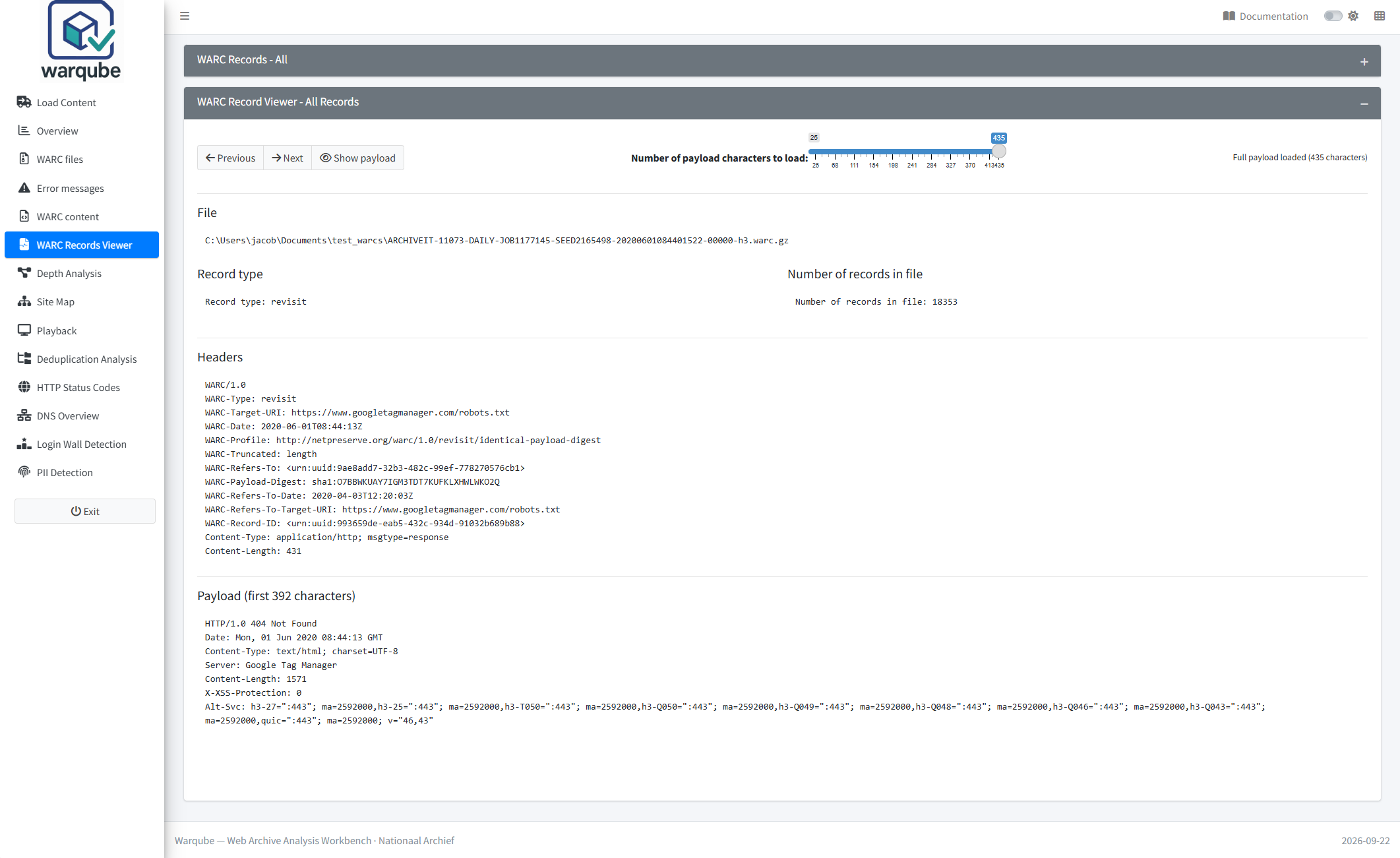
Purpose
The viewer helps you examine the records indexed during an analysis. It brings together descriptive fields from the Warqube database with headers and payload content read from the original WARC file.
When to use this page
Open WARC Records Viewer when you need to:
- find records in a particular WARC file;
- restrict the results to a record type such as
response,revisitorwarcinfo; - review a record’s identifier, date, target URI, mimetype or HTTP status;
- inspect the stored WARC and protocol headers; or
- view part of a record’s payload.
The original WARC files must remain available at the locations recorded during the analysis if you want to view headers or payload content.
Understanding the results
WARC record table
WARC Records - All lists indexed records in order of WARC Record Date. The table contains:
- File Name;
- WARC Record ID;
- Record Type;
- Mimetype;
- HttpStatus;
- Payload Digest;
- WARC Record Date; and
- WARC Target URI.
Use Filter by file to select one WARC file and Filter by record type to select one record type. Max rows limits the returned results; it starts at 1,000 and accepts values from 100 upwards. The table displays ten rows per page.
To find and open a record:
- Select a value under Filter by file or Filter by record type if you need to narrow the results.
- Adjust Max rows if the required record falls outside the current result limit.
- Use the table search field to find a value in the returned rows.
- Select one table row.
- Review the record in WARC Record Viewer - All Records.
Changing a filter or Max rows clears the current record selection and payload display. Select Refresh Data to update the available file and record-type choices from the loaded database.
If the selected filters return no rows, the table displays:
No results
To recover from this result:
- Set Filter by file to the option for all files.
- Set Filter by record type to the option for all types.
- Increase Max rows if you need to inspect more results.
- Review the table again.
The table displays records when the loaded database contains matching indexed records. If it still displays No results, the interface gives no more specific explanation.
WARC record viewer
After you select a row, WARC Record Viewer - All Records displays:
- the stored path to the WARC file;
- the record type;
- the total number of indexed records in that file; and
- the record headers.
To inspect payload content:
- Review the estimated number of available characters beside Number of payload characters to load.
- Select Show payload.
- Adjust the character slider to change how much of the loaded payload is displayed.
- Select Previous or Next to open the adjacent record in the current filtered and limited results.
Before you select Show payload, the viewer displays:
Click 'Show payload' to load content.
The initial character estimate is based on the record’s declared content length. After loading, the viewer reports the measured character count. If a payload cannot be converted to readable text, Warqube attempts to display a hexadecimal representation of its first 200 bytes.
Interpreting common findings
- An empty Mimetype, HttpStatus or Payload Digest cell means that no value is displayed for that indexed record. Not every record type uses all these fields.
- WARC Target URI identifies the target URI recorded in the WARC metadata. It does not confirm that the resource can be replayed.
- Payload Digest reports the stored digest value. The viewer does not recalculate or verify it when you open the record.
- The record count shown in the viewer applies to the complete WARC file, not the current filters or table page.
- Previous and Next follow the current filtered result set, which is ordered by WARC record date and restricted by Max rows.
- A hexadecimal payload display indicates that Warqube could not present the selected payload as readable text. It does not identify the file format or explain why conversion failed.
Warqube can also display one of these literal messages when record data cannot be found or read:
<no headers found>
<headers could not be read>
<no readable headers found>
<no payload found>
<no readable payload found>
The source code does not provide a confirmed recovery procedure for these messages. To retain useful information for investigation:
- Record the selected File Name and WARC Record ID.
- Retain the literal message and any relevant console output.
Limitations
- The record list comes from the loaded Warqube database, but headers and payloads are read from the original WARC files. Moving, renaming or removing those files can prevent the viewer from reading record content.
- Max rows restricts the result set before the table is displayed. Table search and Previous or Next cannot reach records beyond that limit.
- Selecting Show payload loads the complete payload before displaying the chosen number of characters. The source code defines no maximum payload size or expected loading time.
- The initial available-character value is an estimate derived from the stored content length and may differ from the measured character count.
- The viewer presents headers and payload content but does not render a web page, follow references, verify payload digests or assess record validity.
- A hexadecimal fallback is limited to the first 200 payload bytes.
- Refresh Data updates the filter choices, but the source code does not confirm that it independently reloads the current table results.
Related dashboards
- Exploring archived content summarises mimetypes and lists response and revisit records.
- Investigating Error Messages lists validation findings and provides a viewer for records from affected WARC files.
- Inspecting WARC files provides file-level validation and descriptive information.
Next steps
Continue to Analysing crawl depth to review the crawl-depth results for the analysed web archive.