Inspecting WARC files
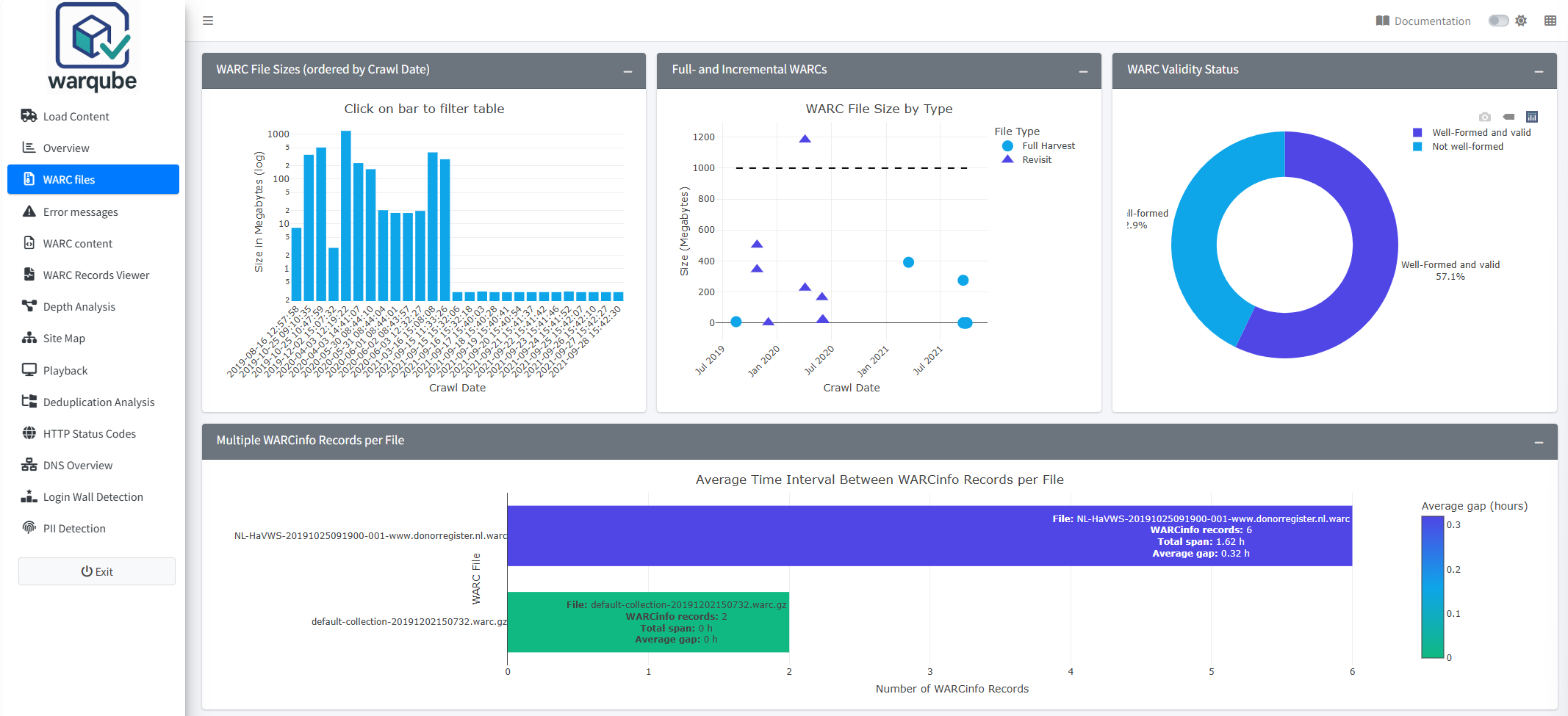
Use the WARC files dashboard to compare individual WARC files and identify files that require closer examination. The dashboard presents file sizes, crawl dates, validation statuses, revisit records, WARCinfo records and descriptive file information.
Purpose
This dashboard helps you move from the collection-level summary on Overview to file-level results. Use its charts to recognise patterns and its table to find the WARC files associated with those patterns.
When to use this page
Open WARC files after reviewing the Overview dashboard. Use it when you need to:
- compare WARC file sizes or crawl dates;
- identify the files associated with a validation status;
- distinguish files with and without revisit records;
- inspect files containing multiple WARCinfo records; or
- find recorded details for a specific WARC file.
Understanding the results
WARC file sizes
WARC File Sizes (ordered by Crawl Date) shows each file as a bar. The horizontal axis shows the recorded crawl date and the vertical axis shows the file size in megabytes on a logarithmic scale. Point to a bar to see the file name, size and crawl date.
To inspect a file selected from this chart:
- Select its bar in WARC File Sizes (ordered by Crawl Date).
- Review the matching row in WARC Files.
- Select Reset Table to remove the selection and restore the complete table.
Full- and incremental WARCs
Full- and Incremental WARCs plots file size against crawl date. Warqube labels a file Revisit when it contains at least one revisit record and Full Harvest when its indexed records contain no revisit record. Point to a marker to see the file name, size, crawl date and assigned type.
The dashed horizontal line is placed at 1,000 MB as a visual size reference.
WARC validity status
WARC Validity Status groups the files by their recorded validation status. The chart shows the proportion for each status; pointing to a segment also shows the number of files.
Use the Status column in the file table to identify the files represented by a chart segment. Open the validation-message dashboard when you need the messages recorded for those files.
Multiple WARCinfo records
Multiple WARCinfo Records per File is collapsed when you first open the dashboard. Expand it to examine files containing more than one WARCinfo record. For each listed file, the chart shows:
- the number of WARCinfo records;
- the total time span between the first and last record; and
- the average interval between successive records, in hours.
If no file contains multiple WARCinfo records, the chart displays:
No WARC files with multiple WARCinfo records found
No action is required when this message appears.
WARC file table
WARC Files contains one row for each file and displays the following recorded information:
- File Name;
- Size (MB);
- File Format;
- Version;
- Status;
- Crawl Date;
- Crawl Software; and
- User Agent.
Use the table search field to find or filter values. The table initially shows ten rows per page. Select a column heading to change the sort order.
Interpreting common findings
- A much larger or smaller file is a reason to inspect that file in context; the source code does not define an expected WARC file size.
- A file labelled Revisit contains at least one revisit record. This does not mean that every record in the file is a revisit record.
- A file labelled Full Harvest has no revisit record among its indexed records. The label does not confirm how the original crawl was configured.
- Different segments in WARC Validity Status reflect the exact statuses recorded during validation. Review the associated messages before deciding what a status means for preservation action.
- Several WARC versions, crawl-software values or user-agent values can reveal differences within the analysed collection. The dashboard does not identify whether those differences are intentional.
- The multiple-WARCinfo chart lists only files with more than one WARCinfo record. Their presence is not by itself classified as an error.
Limitations
- The charts and table report information stored in the loaded Warqube database. They do not inspect files again when you open the dashboard.
- A missing crawl date or other empty table value means that the database has no displayed value for that field. The dashboard does not explain why it is missing.
- The vertical axis in the file-size bar chart is logarithmic, so visual differences between bars are not linear.
- The Revisit and Full Harvest labels are based only on the presence or absence of revisit records among indexed records. They do not establish the crawl strategy.
- The source code defines no acceptable thresholds for file size, validation status, the number of WARCinfo records or the interval between them.
- The dashboard does not provide a control for opening the original WARC file directly from the table.
Related dashboards
- Understanding the Overview dashboard summarises results for the complete web archive.
- Investigating validation errors provides the messages associated with validation findings.
- Exploring archived content helps you inspect records stored in the WARC files.
Next steps
Continue to Investigating validation errors to examine the recorded messages for WARC files with validation findings.