Loading a web archive
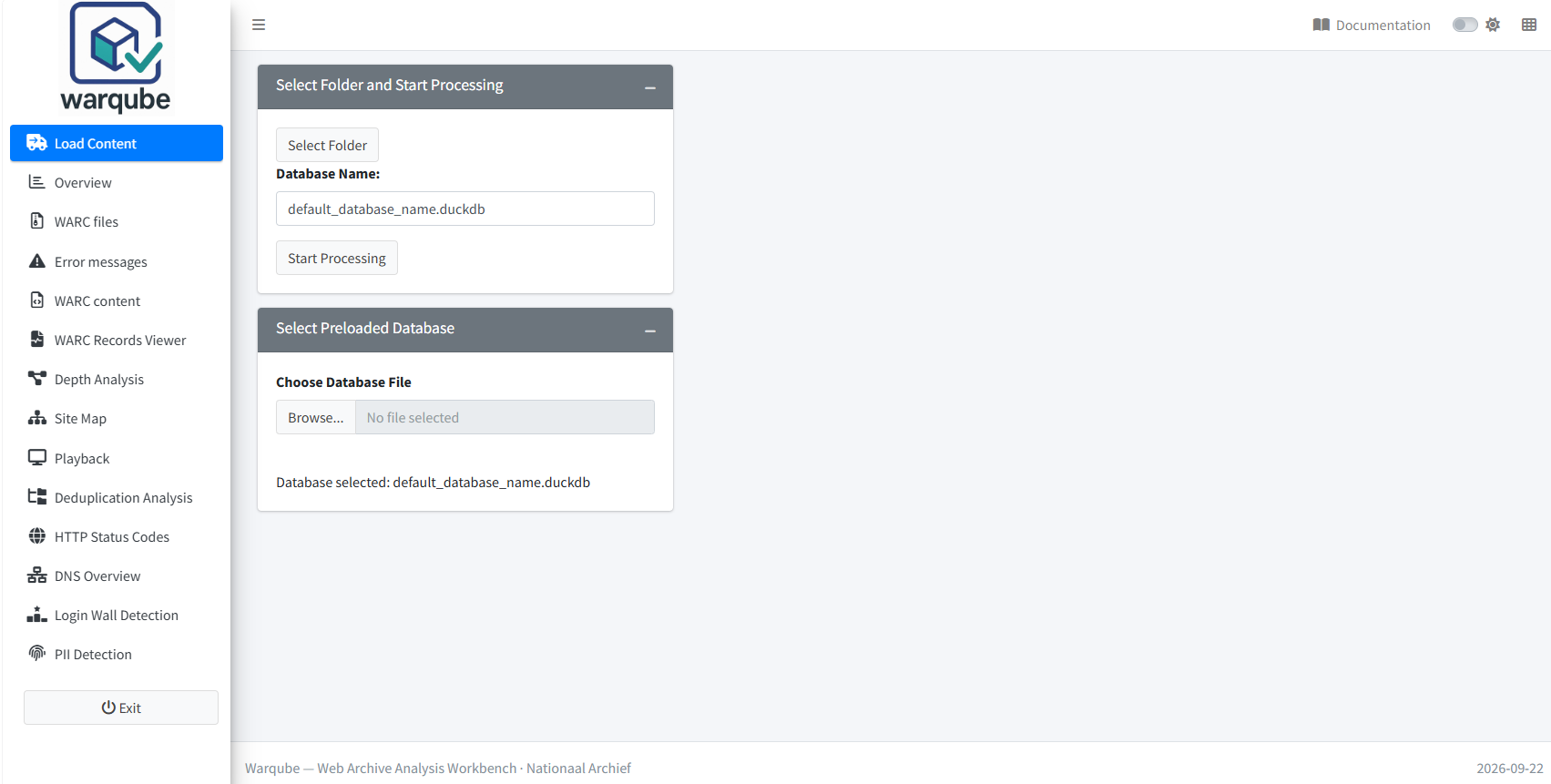
The Load Content page is the starting point for working with a web archive. Use it to start a new analysis from a directory of WARC files or to load an existing Warqube database.
Purpose
Load Content connects Warqube to the source files or analysis results that you want to examine. Choose the route that matches your task:
- start a new analysis when you have WARC files that Warqube has not yet processed; or
- load an existing
.duckdbfile when the web archive has already been processed by Warqube.
Loading an existing database does not start a new analysis.
Typical workflow
Start a new analysis
- Open Load Content.
- Select Select Folder.
- Choose the directory that contains the WARC files.
- Confirm that the path appears after
Selected folder:. - Review Database Name and change the default name if required.
- Select Start Processing.
Warqube creates or updates the named database and displays progress while it processes the WARC files. Continue with First Analysis for the complete first-analysis procedure.
Load an existing analysis
- Open Load Content.
- Locate Select Preloaded Database.
- Select Choose Database File.
- Choose a
.duckdbfile previously created by Warqube. - Confirm that the file name appears after
Database selected:. - Open Overview or another dashboard to examine the loaded results.
When the database contains the location of its source WARC directory, Warqube also restores that location and displays it after Selected folder:. The source code does not confirm that every older or externally created .duckdb file contains this information.
Available functions
| Function | What it does |
|---|---|
| Select Folder | Opens a directory selector for choosing the directory that contains the WARC files. |
| Database Name | Sets the name or path of the database used for a new analysis. The default is default_database_name.duckdb. |
| Start Processing | Starts processing after a WARC directory and database name have been selected. |
| Choose Database File | Opens an existing .duckdb file and makes its analysis results available to the dashboards. |
If Database Name contains only a file name, Warqube stores the database in data/duckdb inside the Warqube project directory. Warqube adds the .duckdb extension if it is missing.
Tips
- Keep the WARC files directly in the selected directory. The source code does not confirm that Warqube searches subdirectories.
- Use a meaningful database name that identifies the web archive or analysis.
- Use a new database name for each new analysis. Starting processing with the name of an existing Warqube database clears its existing analysis data.
- Keep the original WARC directory available after processing. Some functions use the stored source location when an analysis is loaded again.
- Select Choose Database File only for
.duckdbfiles created by Warqube. The source code does not define compatibility with other DuckDB databases.
If Warqube cannot access a selected database, it displays:
Database file does not exist or is not accessible.
- Confirm that the selected
.duckdbfile still exists. - Confirm that the current Windows user can access the file.
- Select Choose Database File and choose the file again.
Related pages
- First Analysis explains how to complete a new analysis successfully.
- Understanding the Overview dashboard explains the first dashboard available after loading results.
- Replaying archived websites explains how to use source WARC files for playback.
Next steps
For a new web archive, continue to First Analysis. After loading an existing Warqube database, continue to Understanding the Overview dashboard.